How to Export Claude Chat: 5 Methods That Actually Work
September 07, 20267 min read
If you want to export Claude chat, the best method depends on what you need next: a clean PDF, an editable Word document, Markdown notes, a full account backup, or a simple read-only link.
The important thing to know first: Claude's official export feature is built for account-level data backup. It is not a polished one-click export button for a single conversation. For individual chats, you usually need a browser extension, manual copy, browser print, or a share link depending on the job.
This guide focuses on methods that actually work for Claude, with the limitations called out clearly so you do not waste time using the wrong export path.
1. Use AI Chat Exporter by Backrun for a Clean Claude Chat Export
AI Chat Exporter is the cleanest method when you need selected Claude conversations in portable formats such as PDF, Word, Markdown, or Notion.
This is the best first option when you want to export one Claude conversation into a useful working document instead of a raw archive. It is especially helpful when the chat includes headings, long answers, code blocks, lists, tables, links, or artifacts you need to reference later.
Steps to follow
Use this workflow when you need a readable export that can be saved, shared, or edited.
Open Claude and load the conversation you want to save.
Select the relevant messages, or export the whole thread if the order matters.
Choose your output format: PDF for sharing, Word for editing, Markdown for notes, or Notion for knowledge management.
Export the file and open it once before sending it to anyone else.
Best for
Use this method for client work, research notes, coding discussions, reusable prompts, meeting-style summaries, and any Claude thread where formatting matters.
Limitations
A browser extension can only export what it is allowed to read in the browser. Before installing any extension, check the publisher, permissions, reviews, and whether the export happens in a way that fits your privacy requirements.
2. Use Claude's Official Data Export for Full Chat History
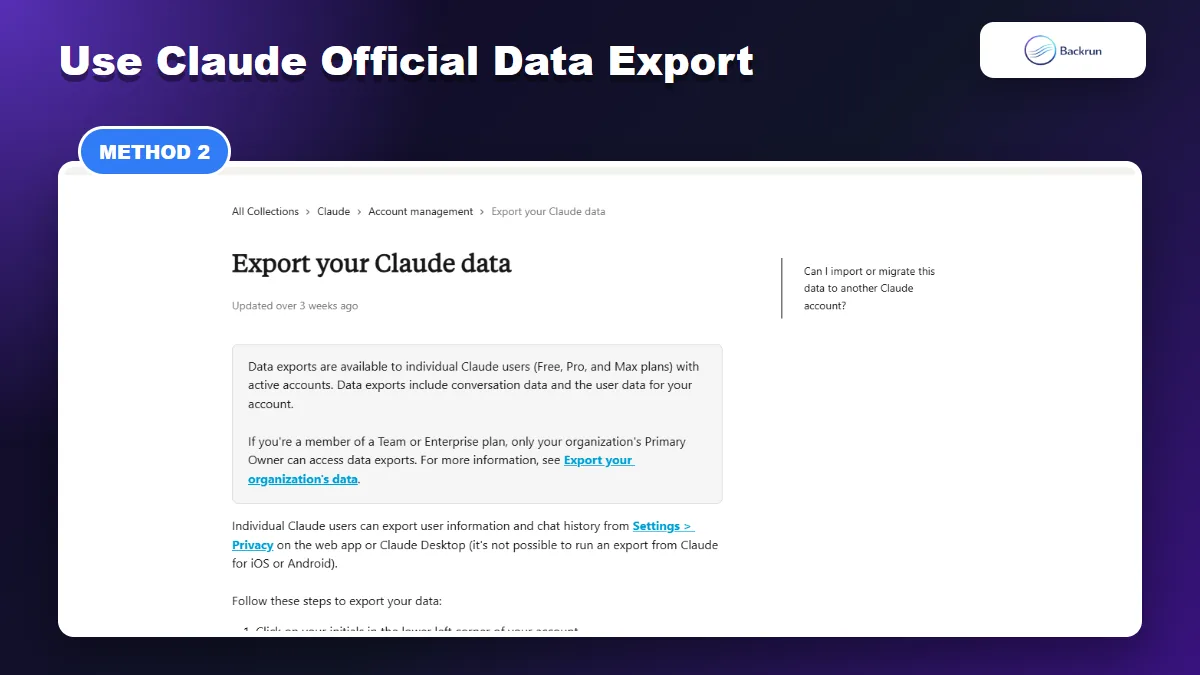
Claude official data export is best for account-level backup, not for a polished single-chat document.
Anthropic provides an official way for individual Claude users to export account data from Claude on the web or Claude Desktop. According to Claude Help Center, the path is Settings > Privacy > Export data.
Steps to follow
Use this workflow when you want a backup of your Claude account history, not a polished document for one conversation.
Open Claude in the web app or desktop app.
Click your initials in the lower-left corner.
Open Settings.
Go to Privacy.
Click Export data and wait for the export process.
Download the archive when it becomes available.
Best for
Use Claude's official data export when you are backing up your account, moving away from Claude, auditing old conversations, or keeping a private archive before deleting an account.
Limitations
This export is not designed as a beautiful blog-ready or client-ready document. Expect technical files that may require cleanup. Do not upload the full archive into another AI tool without reviewing it first, because it may contain private prompts, client details, files, and old drafts.
3. Copy Selected Claude Messages Into a Document
Manual copy works for short Claude answers, but long conversations need cleanup before they become useful documents.
Manual copy-paste is still the fastest method when you only need one answer or a short part of a conversation. It is not fancy, but it is reliable when the thread is small.
Steps to follow
Use this workflow when you need a quick editable note, not a perfect full-thread export.
Open the Claude conversation.
Select the response or message range you want to keep.
Copy the content.
Paste into Word, Google Docs, Notion, or a Markdown editor.
Rebuild important formatting, especially tables, headings, code blocks, and nested lists.
Add the date and conversation topic at the top so the note is searchable later.
Best for
Use manual copy for short answers, final recommendations, reusable prompts, and small snippets that you want to edit immediately.
Limitations
Copy-paste gets messy with long threads. It can also break tables, code indentation, math formatting, and multi-message context. If you need an editable Word file, this related Backrun guide on Claude to Word goes deeper into that workflow.
4. Print the Claude Conversation to PDF
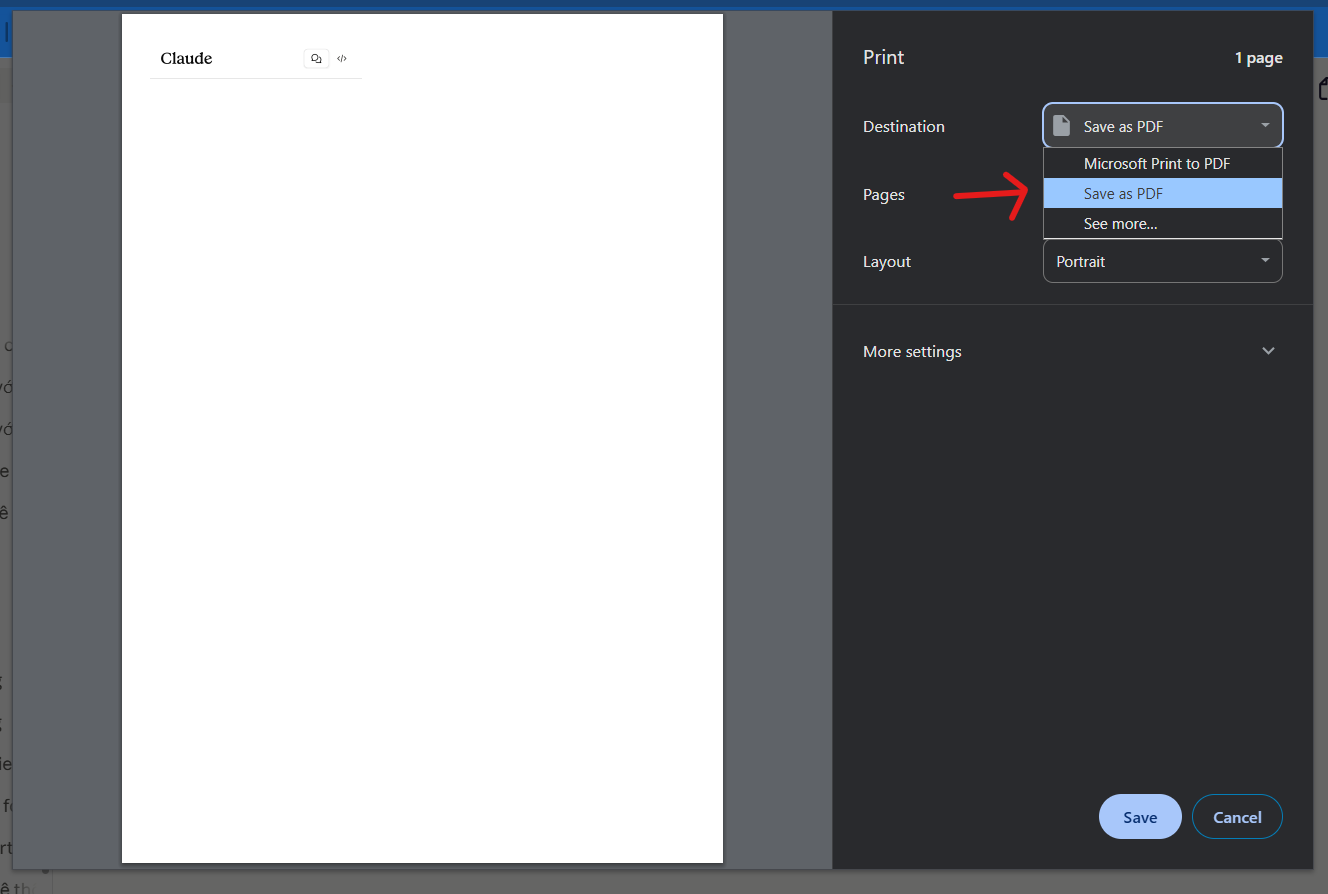
Browser print is a practical workaround when you want a visual record of a Claude conversation. It is not the best editing format, but it is useful for saving a snapshot.
Steps to follow
Use this workflow when a PDF archive is more important than clean editable text.
Open the Claude chat in your browser.
Scroll through the conversation so the parts you need are loaded.
Press Ctrl + P on Windows or Command + P on Mac.
Choose Save as PDF as the destination.
Check preview pages before saving, because long chats can cut oddly across pages.
Save the PDF with a descriptive file name.
Best for
Use print-to-PDF for receipts of work, quick archives, compliance notes, or conversations you want to read later without editing.
Limitations
This method can miss collapsed content, hidden context, unloaded messages, or artifacts. If PDF is your main target, Backrun also has a focused guide on how to export Claude chat to PDF.
5. Share a Claude Chat Link When You Do Not Need a File
A Claude share link is not a file export, but it is useful when the goal is quick read-only sharing.
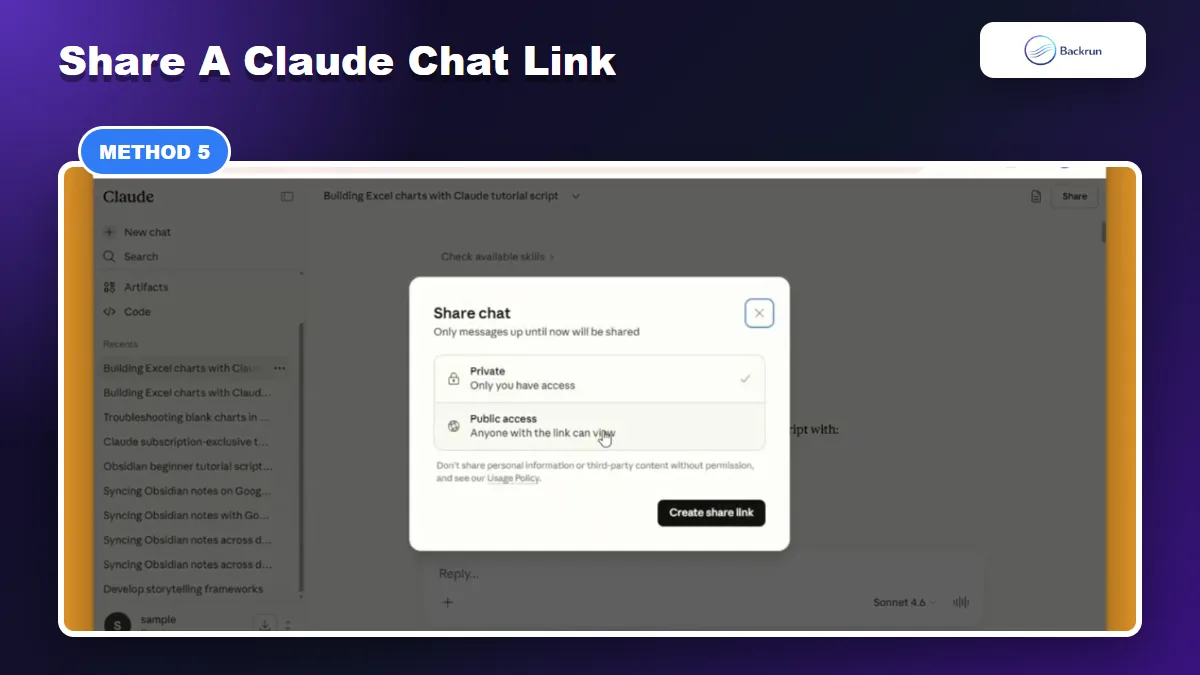
A shared Claude chat link is not a file export, but it can solve the same problem when you only need someone else to read the conversation. Claude Help Center documents share and unshare controls for chats, so use this method when collaboration is more important than downloading a file.
Steps to follow
Use this workflow when you want quick read-only access for another person.
Open the Claude conversation you want to share.
Use Claude's share option if it is available for that chat and account.
Create the share link.
Send the link only to people who should see the conversation.
Unshare the chat later if the link should no longer be accessible.
Best for
Use share links for review, collaboration, lightweight documentation, or showing someone how a Claude answer was produced.
Limitations
Do not use share links for sensitive client data, private strategy, credentials, or anything that should remain internal. A share link is convenient, but it is less controlled than a local file you can store, redact, or delete.
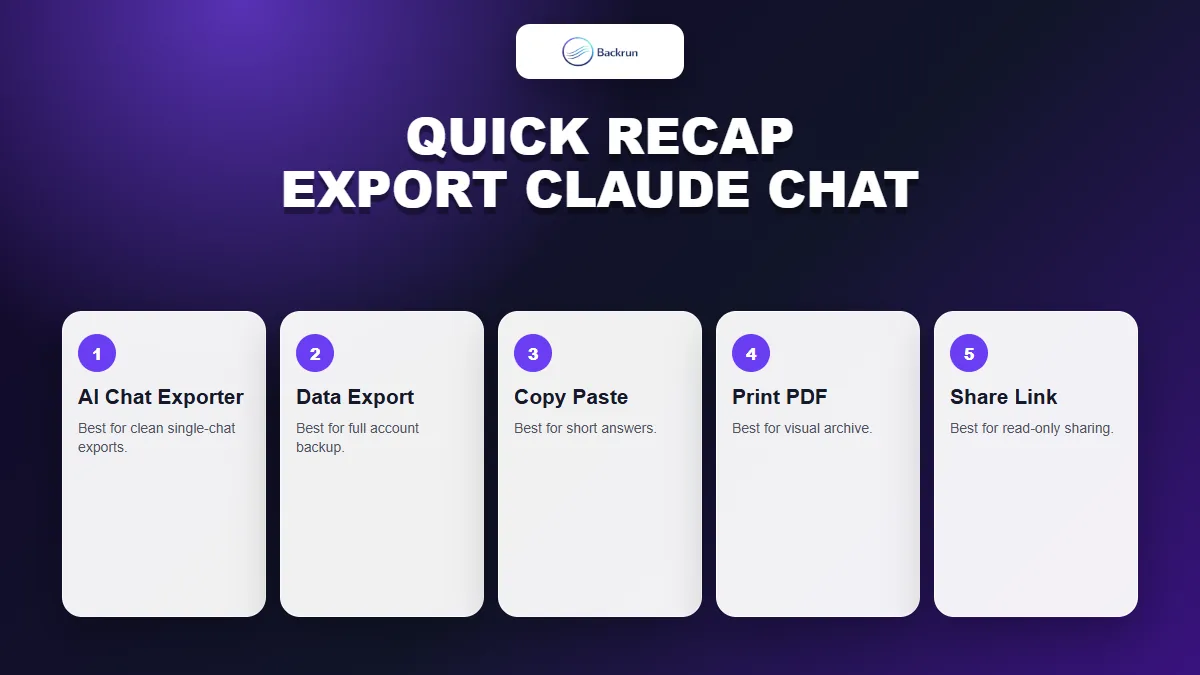
Quick Recap
Choose the Claude export method based on whether you need a clean file, a full backup, a quick note, a PDF snapshot, or a shareable link.
There is no single perfect way to export Claude chat. Pick the method based on the final use case.
Method
Best for
Main caution
AI Chat Exporter
Clean single-chat exports
Review browser extension permissions first
Claude data export
Full account backup
Archive files may need cleanup
Manual copy
Short answers and snippets
Formatting can break
Print to PDF
Visual archive
Long chats may not print cleanly
Share link
Read-only collaboration
Not suitable for sensitive information
For most users, start with AI Chat Exporter when you need a usable document, use Claude's official export for backup, and use manual copy or share links only when the conversation is short or low-risk. If Markdown is your preferred archive format, the related Backrun guide on Claude chat to Markdown is the better next step.