How to Copy and Paste a Table From ChatGPT Into Google Docs (2026)
September 14, 20267 min read
A ChatGPT table can look perfect in the browser and still arrive in Google Docs as loose text, missing borders, or columns that no longer line up. This guide explains how to copy and paste a table from ChatGPT into Google Docs using four dependable workflows, from a quick direct paste to structured recovery methods.
1. Copy the Rendered ChatGPT Table Directly
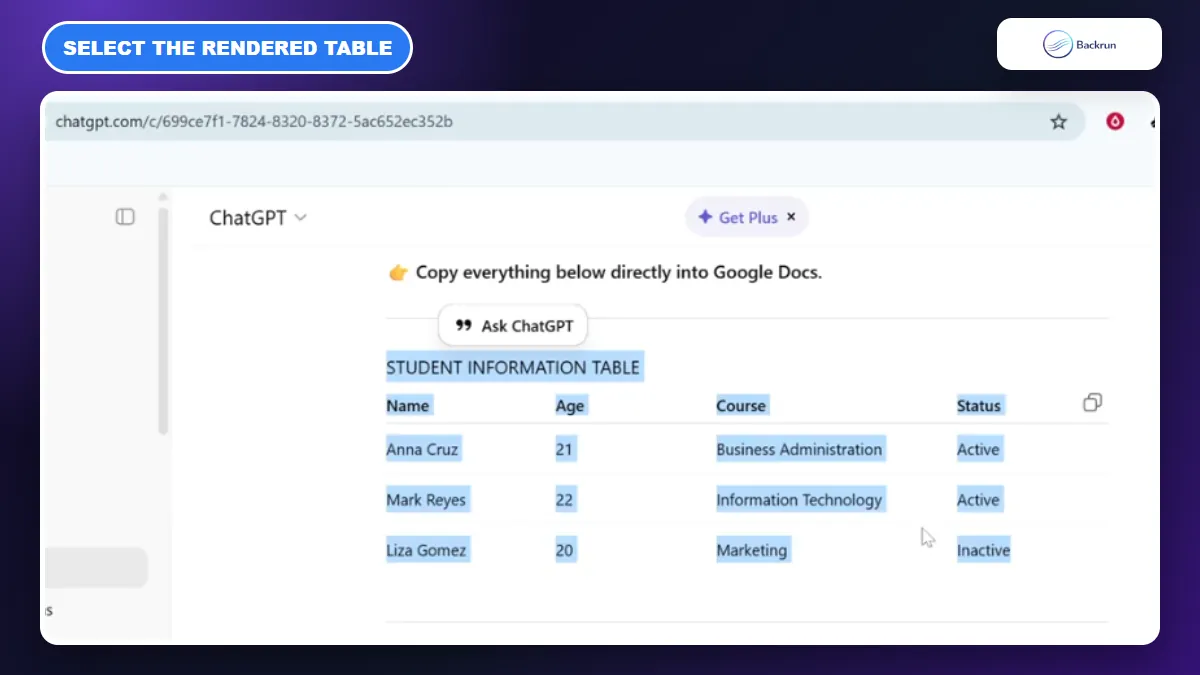
Select the rendered cells in ChatGPT rather than copying only the Markdown source behind the response.
Direct copy and paste should be your first attempt when the table is short and already appears as a proper grid in ChatGPT. The important detail is selecting the rendered table itself so the clipboard carries rich table structure instead of only pipe characters and dashes.
Follow these steps for a normal browser-to-Docs transfer.
Open the ChatGPT conversation and scroll until the complete table is visible.
Select the entire rendered table, starting with the first header cell and ending with the final data cell.
Copy the selection with Ctrl + C on Windows or Command + C on macOS.
Open Google Docs, place the cursor where the table should appear, and paste normally.
Click inside the result. A successful transfer produces individual editable cells rather than aligned paragraphs.
Fix widths and borders with the Google Docs table controls, then compare every value with ChatGPT.
Best for: small comparison tables, schedules, checklists, and tables without merged cells.
Advantage: it is fast and does not require an extension or intermediate file.
Limitation: the result varies with the browser, table complexity, and the exact selection. Google's official copy-and-paste guidance also notes that browser clipboard behavior can affect menu-based operations.
Experience tip: if the table arrives without borders but still has editable cells, repair the border color and width instead of repeating the transfer. If all values land as plain paragraphs, move to the Google Sheets method.
2. Export the Table With ChatGPT Exporter
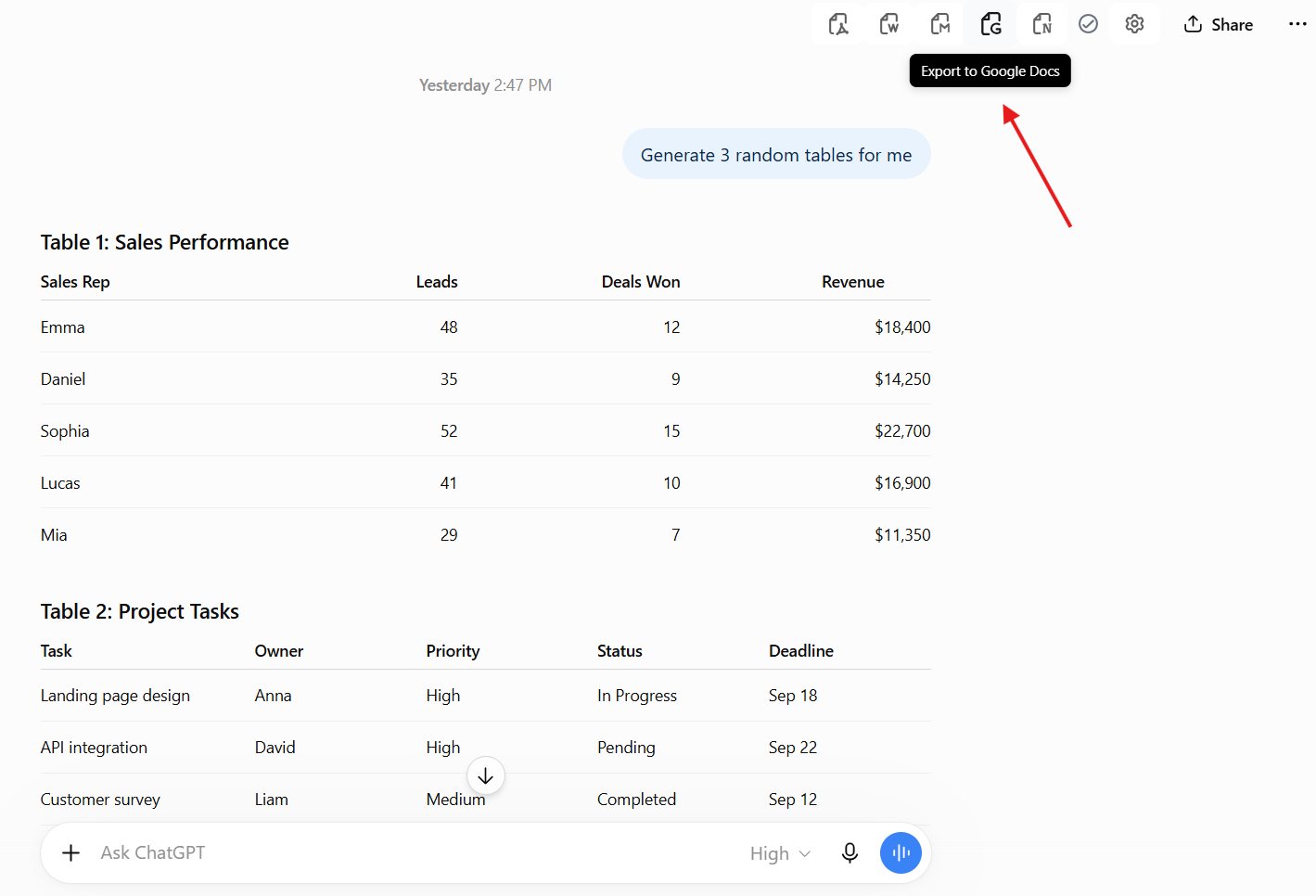
ChatGPT Exporter sends selected messages or a complete ChatGPT conversation to Google Docs with its structure intact.
Use ChatGPT Exporter when the table needs to remain attached to headings, explanations, links, or other messages in the same conversation. This avoids manually selecting a long response and reduces the chance of leaving out a row.
Use the following workflow to export the relevant content.
Open ChatGPT and load the conversation containing the table.
Select the message you need, or choose the complete conversation when earlier prompts provide necessary context.
Choose Google Docs as the destination.
Complete the Google authorization step if requested, then open the new document.
Review the exported table for shifted columns, missing links, long cell wrapping, and any private prompts that should be removed.
Best for: long answers, several tables, recurring research exports, and documents that need more than table data.
Advantage: the Chrome Web Store listing explicitly includes tables and direct Google Docs export, along with selected-message and full-conversation controls.
Limitation: Google Docs is a cloud destination, so authorization and extension permissions matter. Test a non-sensitive conversation and review current permissions before using client or company data.
Practical check: compare the first row, last row, and widest column with the ChatGPT response. These positions reveal most incomplete exports quickly. Backrun's broader guide to exporting ChatGPT to Google Docs covers full-document workflows beyond tables.
3. Use Google Sheets as a Formatting Bridge
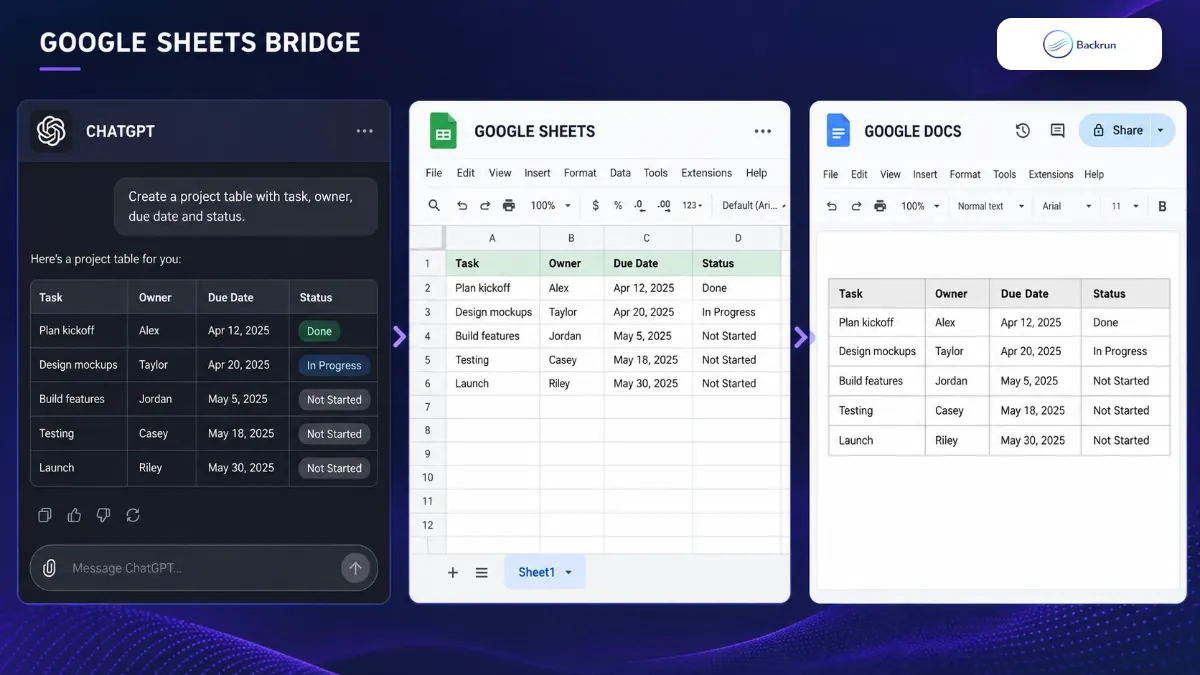
Google Sheets is a useful bridge when the table data is correct but Google Docs cannot reconstruct the rows and columns directly.
Google Sheets gives you a visible grid where broken columns can be corrected before the table enters the document. This is the most controlled method for wide tables, many rows, numeric data, or content that needs sorting and cleanup.
Below is the practical Sheets-to-Docs workflow.
Ask ChatGPT for tab-separated values. Use a prompt such as: Return this table as tab-separated text only. Keep one record per line and do not add commentary.
Copy the complete result and paste it into cell A1 of a blank Google Sheet.
Confirm the column structure. If everything lands in one column, use Data > Split text to columns and choose the tab separator.
Clean the data, including extra line breaks, duplicate headers, inconsistent dates, or numbers stored as text.
Select the finished cell range and copy it.
Paste into Google Docs, then choose whether to link the table to the spreadsheet or paste it unlinked.
Resize the columns and verify that the Docs table matches the source range.
Best for: datasets, price comparisons, project plans, survey results, and tables that may need updates later.
Limitation: this method adds an extra file and does not preserve decorative ChatGPT styling. It prioritizes correct cells over visual similarity.
Experience tip: use an unlinked paste for a final static document. Use a linked table when Sheets remains the source of truth and the values will change.
4. Rebuild Raw Text With Text To Table Converter
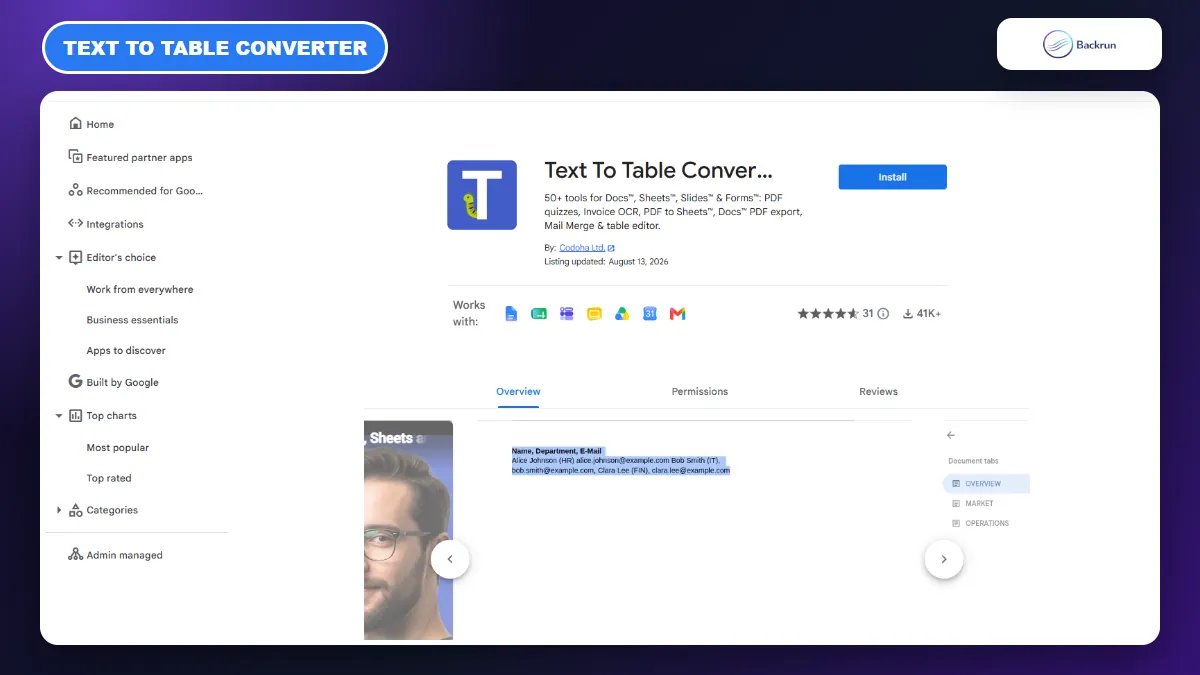
Text To Table Converter can rebuild structured rows and columns inside Google Docs when only raw text or Markdown is available.
This fallback is useful when ChatGPT's Copy button gives you Markdown pipes and dashes, or when the browser has already flattened the table into plain text. Text To Table Converter is a Google Workspace add-on whose current Marketplace listing includes core text-to-table conversion for Google Docs.
Use these steps when you need to rebuild the table inside the document.
Open the official Marketplace listing and install Text To Table Converter after reviewing its requested permissions.
Ask ChatGPT for a consistent delimiter, preferably tabs or commas, and one line per row.
Paste the raw text into Google Docs without trying to draw the table manually.
Open the add-on from Extensions or the right-side panel.
Select the pasted data, choose the correct separator, and run the text-to-table action.
Inspect the new table and repair any cells where the original text contained the chosen delimiter.
Best for: raw Markdown, copied CSV, tab-separated text, and tables that fail in both direct paste and browser selection.
Advantage: the table is created inside Google Docs, so there is no separate spreadsheet to manage.
Limitation: the Marketplace listing requests broad Google Workspace permissions. That may be appropriate for its feature set, but it is a meaningful privacy consideration. Google's guide explains how to review and install Marketplace apps.
Trust check: use a sample table first and remove confidential values until you understand the add-on's permissions, data handling, and pricing limits.
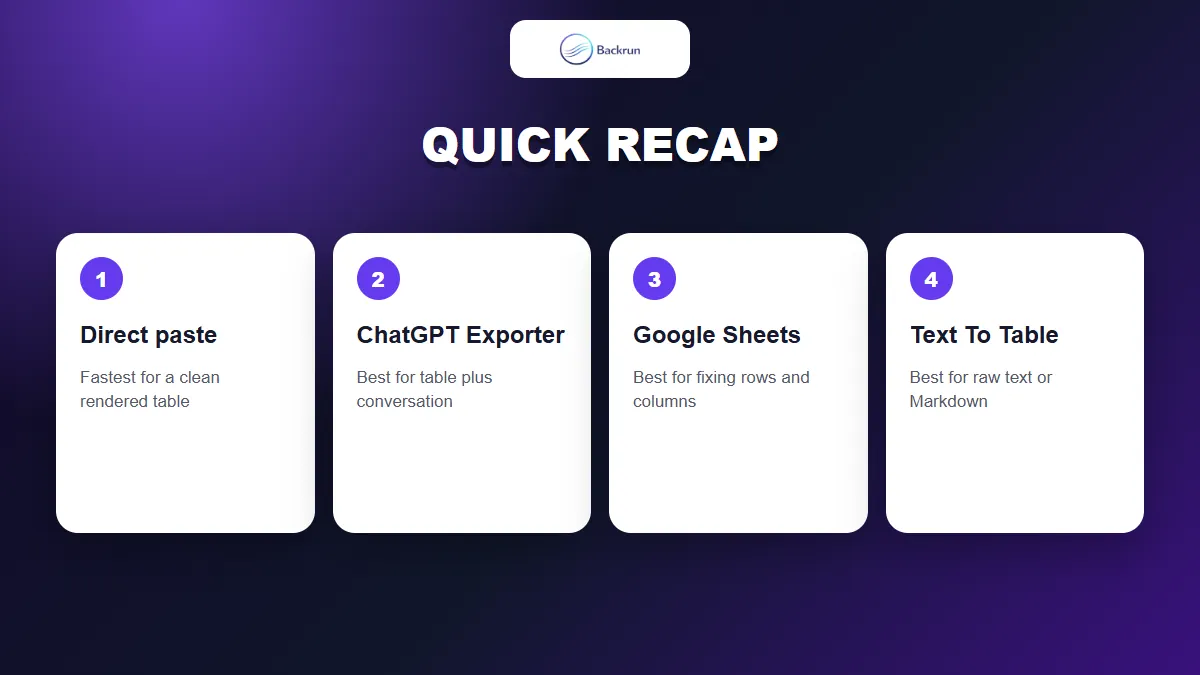
Quick Recap
Choose the method according to the table format, amount of context, and whether the data needs ongoing updates.
The most reliable way to move a ChatGPT table into Google Docs depends on what the clipboard preserves.
Method
Best for
Main advantage
Main limitation
Direct paste
Small rendered tables
Fast and tool-free
Complex formatting may break
ChatGPT Exporter
Table plus conversation context
Direct Google Docs workflow
Requires extension permission review
Google Sheets bridge
Large or frequently updated data
Best control over rows and columns
Adds an intermediate spreadsheet
Text To Table Converter
Raw text and Markdown
Rebuilds the table inside Docs
Requests broad Workspace access
Try direct paste first. Choose ChatGPT Exporter when the surrounding answer matters, Google Sheets when data accuracy is the priority, and Text To Table Converter only when the source has already collapsed into raw text. If Word is your destination instead, use Backrun's separate guide to copy a table from ChatGPT to Word.